C# Trim: Removing Whitespace and Characters
c# trim: Learn how to use C# Trim, TrimStart, and TrimEnd to remove whitespace and custom characters from strings, including performance and culture considerations.
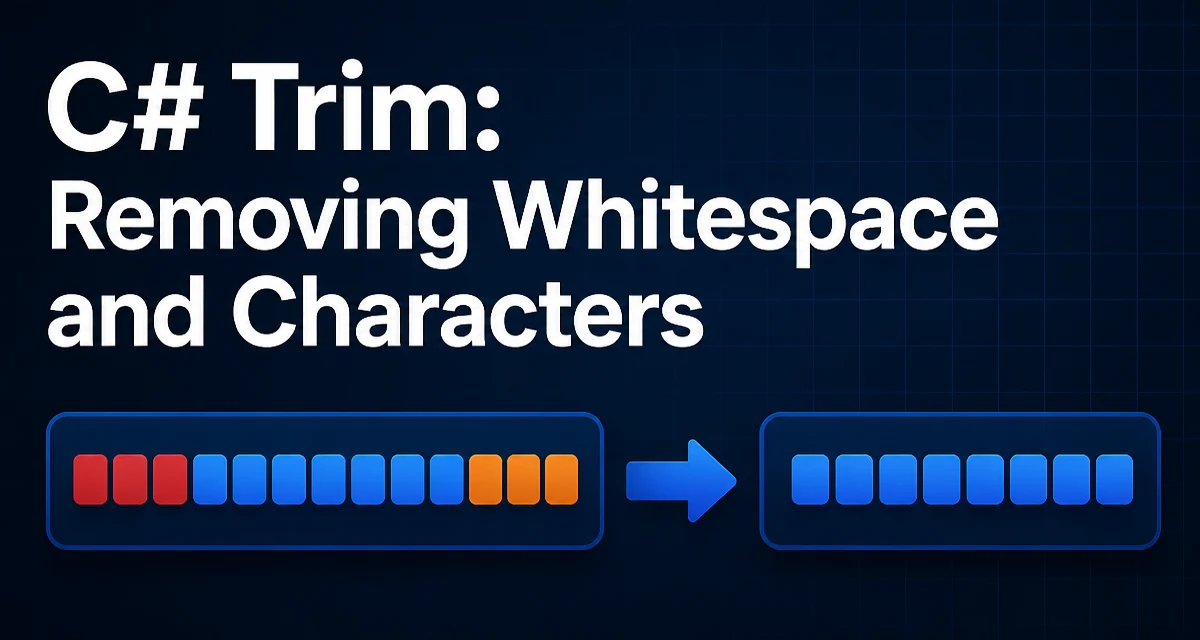
When you receive user input from a form, an API body, or a configuration file, the string often contains leading or trailing whitespace. The Trim methods in C# remove that whitespace and give you a clean value to validate, compare, or store. In this article, you'll see exactly how c# trim works, which overloads exist, how to trim specific characters, and where the built-in behavior has surprising edges.
The Basic Trim Methods and Their Return Values
C# offers three instance methods on string: Trim(), TrimStart(), and TrimEnd(). Each returns a new string; strings are immutable, so the original string remains unchanged.
string raw = "  hello world  ";
string trimmed = raw.Trim();

Console.WriteLine(trimmed);        // hello world
Console.WriteLine(raw.Length);     // 15
Console.WriteLine(trimmed.Length); // 11
The default behavior removes all leading and trailing white-space characters, which includes spaces, tabs, newline characters (\n), carriage returns (\r), and other Unicode whitespace. TrimStart() removes only leading whitespace, and TrimEnd() removes only trailing whitespace.
string path = "  C:\\Users\\example\n";
string trimmedEnd = path.TrimEnd();
Console.WriteLine(trimmedEnd); // "  C:\\Users\\example"
What Counts as Whitespace
The .NET runtime defines whitespace according to the Char.IsWhiteSpace method. This includes the obvious space character, but also tab (\t), line feed (\n), carriage return (\r), form feed (\f), vertical tab (\v), and a range of Unicode characters such as non-breaking spaces and narrow no-break spaces. If your application processes international text, Trim() will remove those less-visible characters too, which can be either helpful or problematic depending on the context.
Trimming Specific Characters: Passing a Param Array
Both Trim(), TrimStart(), and TrimEnd() have overloads that accept a params char[] argument. Instead of removing all whitespace, these overloads remove any character in the provided set from the relevant end(s).
string input = "---username---";
string result = input.Trim('-');
Console.WriteLine(result); // "username"
The trim continues as long as the end character is in the set. Once a character not in the set is encountered, trimming stops. For example:
string mixed = "--abc--def--";
Console.WriteLine(mixed.Trim('-')); // "abc--def"
The leading two hyphens and the trailing two hyphens are removed, but the hyphens in the middle remain.
This overload is common when cleaning delimiters or enclosing symbols:
string serialized = "\"value\"";
string unquoted = serialized.Trim('"');
Console.WriteLine(unquoted); // value
One subtle point: the char[] overload does not treat the argument as a single substring to remove. If you need to remove a specific substring from the beginning or end, you need a different approach, such as checking with StartsWith/EndsWith and removing the appropriate length.
Real-World Example: Cleaning CSV Fields
A common scenario is parsing a comma-separated values line where each field may be surrounded by whitespace and quotes, like " John Doe ". A simple call to Trim() removes the outer spaces, but leaves the quotes. Calling Trim('"') afterward handles the quotes.
string csvLine = "\" John Doe \", 42";
string[] fields = csvLine.Split(',');

string name = fields[0].Trim().Trim('"');
string age = fields[1].Trim();

Console.WriteLine(name); // John Doe
Console.WriteLine(age);  // 42
That pattern works when the CSV is well-formed and no escaped quotes appear inside the field. For real-world CSV with proper escaping, a parser library is more robust, but for simple configurations the trim chain is sufficient.
Performance Considerations: String Allocation and Reuse
Every call to Trim() may allocate a new string when the string actually needs trimming. If the string has no leading or trailing whitespace, the method returns the original string instance without allocating. That optimization is an implementation detail; you should not rely on it, but it explains why calling Trim on already-clean strings is not a major performance problem.
However, excessive chaining—Trim().Trim('"')—creates two potential intermediate strings. In most application code that's negligible, but in a tight loop processing many lines, you might want to avoid redundant calls. For example, decide what the input format actually requires and call the minimal set of trims.
A more impactful performance concern arises when you use Trim inside a LINQ query that repeatedly processes the same collection. Each trimming operation is O(n) in the length of the string. For large datasets, consider trimming once and storing the result instead of trimming on every access.
Culture and Unicode Behavior
Trim() is culture-sensitive in the sense that it uses the Unicode whitespace definition rather than a locale-specific set. That means what is trimmed can change across .NET versions if Unicode standard changes, but in normal use it is consistent across cultures. If you need to trim only the ASCII space character (U+0020), you can pass that character explicitly: Trim(' ').
For scenarios where you need to trim zero-width spaces or other Unicode separators, the default Trim() already covers them. If you need to preserve certain whitespace characters, you cannot easily exclude them with the default overload; you would need a custom method that removes only unwanted characters.
Nullable Strings and Error Handling
Calling Trim() on a null string throws NullReferenceException. Because Trim is an instance method, you must ensure the string is not null before calling it. A common pattern is to use the null-conditional operator:
string? maybeNull = GetValue();
string result = maybeNull?.Trim() ?? string.Empty;
In modern C# with nullable reference types enabled, the compiler will give a warning if you call Trim on a nullable string without a null check. The null-conditional operator is a clean way to produce a non-null result.
Another pattern is to use string.IsNullOrWhiteSpace to check if the value is null, empty, or whitespace, and only then trim.
if (!string.IsNullOrWhiteSpace(input))
{
    string clean = input.Trim();
    // safe to use clean
}
This combines a validation check with the trimming operation, which is often what you actually want before processing user input.
When Trim Is Not Enough: Removing Interior Spaces
Trim only removes leading and trailing characters. If your input contains multiple spaces between words and you want to collapse them to a single space, Trim will not help. You need a regular expression or a split/join approach.
string messy = "  John   Doe  ";
string collapsed = string.Join(' ', messy.Split(' ', StringSplitOptions.RemoveEmptyEntries));
Console.WriteLine(collapsed); // "John Doe"
Alternatively, with a regex:
using System.Text.RegularExpressions;

string collapsed = Regex.Replace(messy.Trim(), @"\s+", " ");
The regex approach also collapses tabs and newlines into a single space, which may or may not be desirable. The split/join method is simpler to reason about when you only need to handle spaces.
Summary of Trim Usage and Practical Decision Criteria
To choose the right trimming method, consider the data you are cleaning:
- Use
Trim()when you want to remove all Unicode whitespace from both ends. - Use
TrimStart()only when you care about leading whitespace, such as when aligning text. - Use
TrimEnd()to remove trailing newline characters from a line read from a file. - Use the char overloads to remove specific delimiters like quotes or brackets.
Keep in mind that trimming is a form of normalization. Decide early in your pipeline what the expected canonical form of your string is, and apply trimming once, at the boundary, rather than repeatedly at each point of use. This prevents subtle bugs where some parts of the code expect whitespace and others do not. For user input, always trim before validation or comparison so that accidentally typed spaces do not cause an otherwise valid value to be rejected.