Python Pandas: Export DataFrames to CSV, Excel, and JSON
python pandas export csv excel and json: Learn how to export pandas DataFrames to CSV, Excel, and JSON with the right parameters, handling dates, encoding, and perform...
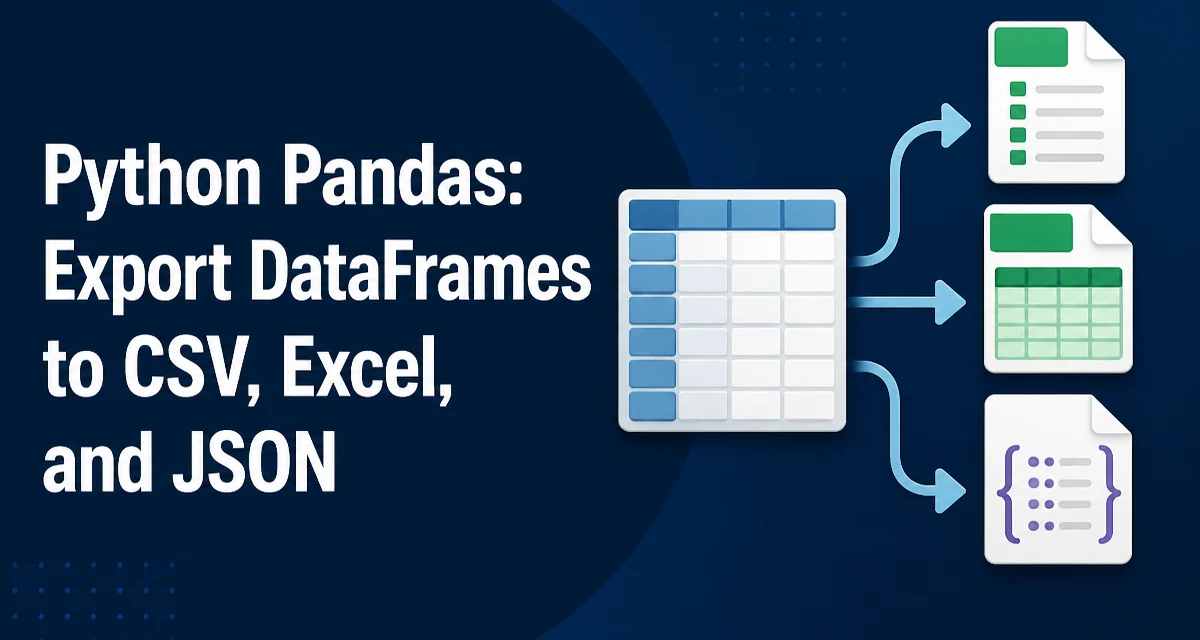
python pandas export csv excel and json requires a clear understanding of the core syntax, runtime behavior, and practical implementation patterns demonstrated in the examples below.
When you need to move data out of a pandas DataFrame for downstream tools, the standard formats are CSV, Excel, and JSON. The pandas library provides dedicated methods for each: to_csv, to_excel, and to_json. This article covers the practical details of using these methods, including the parameters that matter, common pitfalls, and performance considerations for larger datasets.
Exporting to CSV with to_csv()
The to_csv() method is the most straightforward way to serialize a DataFrame to a comma-separated values file. Its basic usage is simple:
import pandas as pd

df = pd.DataFrame({
    "name": ["Alice", "Bob", "Charlie"],
    "score": [92, 85, 78]
})

df.to_csv("scores.csv")
This writes the DataFrame to scores.csv with the default settings: a header row, the index column, and comma separators. In many cases you do not want the index written to disk, especially if it is a positional RangeIndex that adds no information. Pass index=False to suppress it:
df.to_csv("scores.csv", index=False)
When your data contains non-ASCII characters, the default encoding (utf-8) is usually fine, but some legacy applications expect a different encoding. Use the encoding parameter to control this:
df.to_csv("scores.csv", index=False, encoding="utf-8-sig")
The utf-8-sig encoding adds a byte-order mark (BOM) that helps Excel recognize UTF-8 content. For tab-separated values, change the separator with sep="\t":
df.to_csv("scores.tsv", sep="\t", index=False)
You can also write to a file-like object, such as a StringIO buffer, which is useful when you need to pass the CSV content to another function or upload it directly to a service:
from io import StringIO

buffer = StringIO()
df.to_csv(buffer, index=False)
csv_content = buffer.getvalue()
Exporting to Excel with to_excel()
Writing an Excel file requires an additional engine, either openpyxl (for .xlsx) or xlwt (for legacy .xls). Install openpyxl to work with modern Excel files:
pip install openpyxl
The basic call is similar to to_csv:
df.to_excel("scores.xlsx", index=False)
One of the main differences from CSV is that Excel files can contain multiple sheets. To write several DataFrames into one workbook, use an ExcelWriter context manager:
with pd.ExcelWriter("report.xlsx") as writer:
    df_scores.to_excel(writer, sheet_name="Scores", index=False)
    df_attendance.to_excel(writer, sheet_name="Attendance", index=False)
You can control which columns are written by passing a columns list. This is useful when the DataFrame contains intermediate columns you do not want in the final report:
df.to_excel("scores.xlsx", index=False, columns=["name", "score"])
Excel has a row limit of 1,048,576 rows per sheet. If your DataFrame exceeds that, to_excel will raise an error. For such large datasets, consider writing to CSV or splitting the data across multiple sheets. Also, be aware that Excel will interpret certain strings as formulas if they start with =, +, or -. If your data contains such strings, you may need to sanitize them before writing to avoid unintended formula execution.
Exporting to JSON with to_json()
The to_json() method is more flexible than the other two because JSON has no single canonical tabular representation. The orient parameter controls the structure of the output. The most common orientations are:
"records"– a list of objects, one per row."split"– an object withindex,columns, anddataarrays."index"– an object keyed by row index, with column names as keys."columns"– an object keyed by column name, with row indices as keys.
For example, orient="records" produces:
json_str = df.to_json(orient="records")
[{"name":"Alice","score":92},{"name":"Bob","score":85},{"name":"Charlie","score":78}]
This format is ideal for feeding into REST APIs or JavaScript frontends because it maps directly to a JavaScript array of objects.
The orient="split" format is useful when you need to preserve column names and index separately:
json_str = df.to_json(orient="split")
{"columns":["name","score"],"index":[0,1,2],"data":[["Alice",92],["Bob",85],["Charlie",78]]}
When your DataFrame contains dates, the default serialization converts them to milliseconds since epoch (Unix time). To get ISO 8601 strings, set date_format="iso":
df.to_json(orient="records", date_format="iso")
If you need to write the JSON to a file, pass a path directly or use a file handle:
df.to_json("scores.json", orient="records")
Handling Common Export Pitfalls
Encoding and Character Issues
CSV files are plain text, so encoding matters. If you export a DataFrame with non-ASCII characters and then open the file in a tool that assumes a different encoding, you will see garbled text. The utf-8-sig encoding is a safe choice for Excel compatibility. For JSON, the output is always UTF-8, so character issues are rare unless you later read the file with the wrong encoding.
NaN and Missing Values
By default, to_csv writes empty fields for NaN values. If you need a specific placeholder, use the na_rep parameter:
df.to_csv("scores.csv", index=False, na_rep="NULL")
For Excel, the same parameter exists: df.to_excel("scores.xlsx", na_rep="NULL"). In JSON, NaN is not valid JSON, so pandas converts it to null by default. If you need a different representation, you can preprocess the DataFrame before export.
Large Files and Memory
When exporting a very large DataFrame, the entire data is held in memory during the write. This is usually fine for DataFrames that fit in RAM, but if you are working with out-of-core data, consider chunking. You can write in chunks using the chunksize parameter in to_csv:
for chunk in df_chunked:
    chunk.to_csv("large.csv", mode="a", header=False, index=False)
This appends each chunk to the same file, avoiding a single large write. For Excel, chunking is not directly supported; you would need to write to multiple sheets or use a different format.
Performance and Compression
Writing to disk is I/O-bound, so the main performance lever is reducing the amount of data written. For CSV, you can compress the output on the fly by passing a file handle that applies compression:
import gzip

with gzip.open("scores.csv.gz", "wt") as f:
    df.to_csv(f, index=False)
Pandas also supports compression via the compression parameter in to_csv for paths:
df.to_csv("scores.csv.gz", index=False, compression="gzip")
For JSON, the to_json method does not have a built-in compression parameter, but you can write to a compressed file handle similarly. Excel files are already compressed internally, so additional compression rarely helps.
When performance is critical, avoid unnecessary conversions. For example, converting a DataFrame to a list of dictionaries before writing to JSON adds overhead. Use to_json directly. Similarly, for CSV, avoid using apply or Python loops to format values; let pandas handle the serialization.
Choosing the Right Export Format
The choice between CSV, Excel, and JSON depends on the consumer of the data.
- CSV is the best choice when you need a plain-text, human-readable format that can be opened by almost any tool, from spreadsheet applications to command-line utilities. It is also the most compact of the three for tabular data, especially when compressed.
- Excel is appropriate when the recipient expects a spreadsheet with formatting, multiple sheets, or formulas. It is not a good interchange format for programmatic processing because the file structure is more complex and the row limit can be restrictive.
- JSON is ideal for web APIs, JavaScript applications, and configuration files. Its nested structure can represent hierarchical data more naturally than a flat table, but it is less space-efficient than CSV for large numeric matrices.
For machine-to-machine data transfer, CSV with index=False and explicit encoding is a reliable default. For API payloads, orient="records" is the most convenient. For business reports, Excel with multiple sheets is often the expected deliverable.
Handling Date and Time Columns
When exporting to CSV, pandas writes datetime objects as ISO 8601 strings by default. This is generally unambiguous and easy to parse. For Excel, datetime values are written as Excel serial numbers unless you specify a format. To control the format, use the date_format parameter in to_excel:
df.to_excel("report.xlsx", index=False, date_format="yyyy-mm-dd")
For JSON, as mentioned earlier, you can choose between epoch milliseconds and ISO format. If you are sending data to a JavaScript frontend, epoch milliseconds are often easier to convert to a JavaScript Date object. If you need human-readable output, use date_format="iso".
One subtle issue: when reading back a CSV with datetime columns, pandas may infer the format incorrectly if the string is ambiguous. To avoid this, always specify the parse_dates parameter when reading the file back, or use a consistent ISO format during export.
Writing to Multiple Formats in One Pipeline
In a typical data processing pipeline, you might need to produce both a CSV for archival and a JSON for an API. You can call the export methods sequentially without reloading the DataFrame:
df.to_csv("data.csv", index=False)
df.to_json("data.json", orient="records")
If you are generating an Excel report with multiple sheets, you can reuse the same ExcelWriter object to write several DataFrames, as shown earlier. This avoids opening and closing the file multiple times, which is both faster and less error-prone.
When you need to export to a database or a cloud storage service, you can often write to a buffer instead of a file. For example, to upload a CSV to S3, you can write to a BytesIO buffer and pass it to the storage client. This pattern avoids temporary files and keeps the export logic self-contained.
Final Technical Consideration: Type Preservation
All three export methods lose some type information. CSV stores everything as text, so you must rely on column types when reading back. Excel preserves numeric and string types but not pandas-specific types like category or timedelta. JSON preserves types only for the JSON data model: numbers, strings, booleans, null, arrays, and objects. If you need to round-trip a DataFrame with full type fidelity, consider using a format like Parquet or pickle instead. For most interchange scenarios, the loss of type information is acceptable because the receiving system will define its own schema.