Pillow Compression Quality and Thumbnails in Python
python pillow compression quality and thumbnails: Learn how to control JPEG quality, use the optimize flag, and generate thumbnails with Pillow while balancing file si...
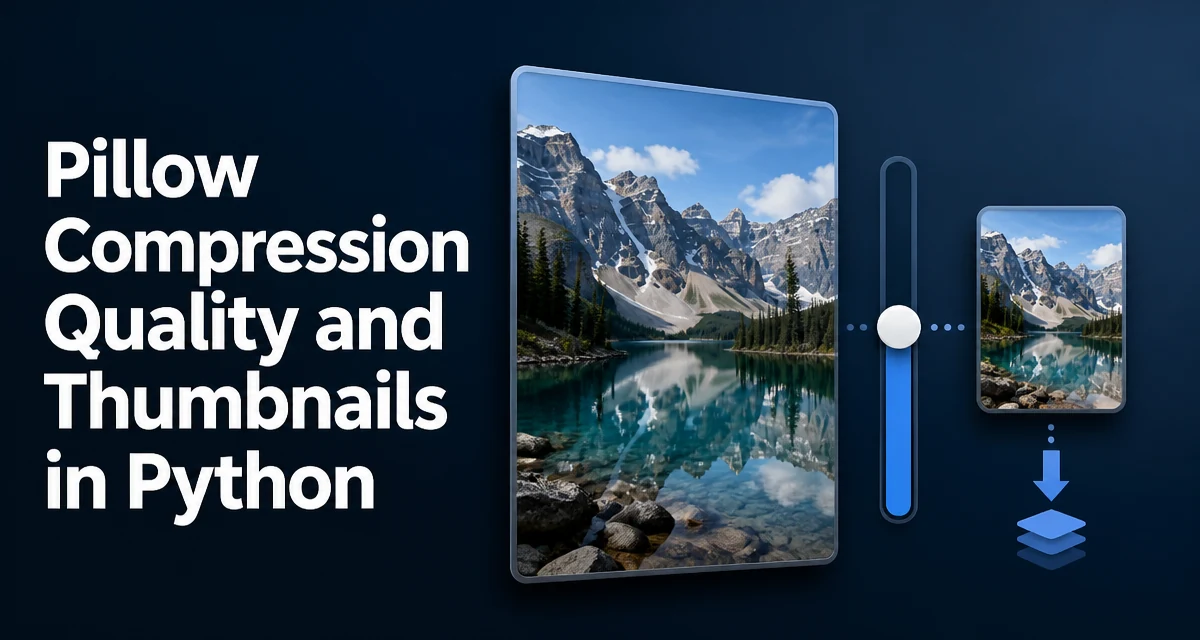
When handling image uploads or processing pipelines in Python, Pillow is the standard library for resizing and compressing images. The common need is to balance python pillow compression quality and thumbnails: you want small file sizes without visibly degrading the image, and you want consistent thumbnails generated efficiently. This article explains how the quality parameter, the optimize flag, and the Image.thumbnail method work together, and when to use each.
How Compression Quality Works in Pillow
The quality parameter in Image.save() controls the compression level for formats that support lossy compression, most notably JPEG. It accepts an integer from 1 (worst quality, smallest file) to 95 (best quality, largest file). The default is 75, which is a reasonable trade-off for most web use cases.
from PIL import Image

img = Image.open("input.jpg")
img.save("output_quality_85.jpg", quality=85)
Higher quality values preserve more detail but increase the file size. The relationship is not linear: going from 85 to 95 often produces a significantly larger file for a barely noticeable visual gain. For images destined for the web, values between 70 and 85 are common. If you need a smaller file and can tolerate some artifacts, drop to 50–60.
Note that quality is ignored for formats like PNG, which use lossless compression. For PNG, the compress_level parameter controls the zlib compression level (0–9), but it does not affect image data quality.
Using the optimize Flag to Reduce File Size
The optimize flag, when set to True, tells Pillow to spend extra CPU time analyzing the image to produce a smaller output file. It works for JPEG and PNG formats. For JPEG, it enables a more efficient Huffman table; for PNG, it improves the compression strategy.
img.save("output_optimized.jpg", quality=80, optimize=True)
Using optimize=True does not change the visual quality—the same quality value is applied. The benefit is a smaller file size, often 5–10% for JPEGs, at the cost of longer encoding time. This is useful in batch processing where storage or bandwidth matters more than CPU time.
For a single image, the difference may be negligible, but when processing thousands of uploads, the savings add up. The optimize flag is not available for all formats; check the Pillow documentation for format-specific support.
Creating Thumbnails with Image.thumbnail
The Image.thumbnail() method resizes an image to fit within a given bounding box while preserving the aspect ratio. It also never enlarges the image: if the original is smaller than the target size, it remains unchanged.
from PIL import Image

img = Image.open("large_photo.jpg")
img.thumbnail((200, 200))
img.save("thumbnail.jpg", quality=85, optimize=True)
thumbnail() modifies the image object in place. It does not return a new image; the original object is replaced with the resized version. If you need to keep the original, copy it first:
img_copy = img.copy()
img_copy.thumbnail((200, 200))
By default, thumbnail() uses the BICUBIC resampling filter, which provides good quality for downscaling. You can change it with the resample parameter, and the reducing_gap parameter controls a two-step resizing approach that can improve quality for large reductions.
Combining Thumbnails with Compression Quality
Generating a thumbnail and compressing it are separate steps. You can apply the quality and optimize parameters directly when saving the thumbnail. This is a common pattern for creating web-friendly previews.
from PIL import Image

img = Image.open("original.jpg")
img.thumbnail((300, 300))
img.save("thumb.jpg", format="JPEG", quality=70, optimize=True)
If you need multiple thumbnail sizes, you can reuse the same original image and create copies for each size. Be mindful of memory: each copy holds the full image data until resized.
Choosing the Right Approach for Your Use Case
The decision between quality, optimize, and thumbnail depends on your goal.
- Use
qualitywhen you need to control the visual fidelity of a saved JPEG. Lower values reduce file size but introduce artifacts. - Use
optimize=Truewhen you want the smallest possible file for a given quality level and can afford the extra CPU time. It is especially valuable in batch jobs. - Use
thumbnail()when you need to fit an image into a fixed dimension, such as an avatar or a preview card, while preserving aspect ratio.
These are not mutually exclusive. A typical pipeline might load an image, create a thumbnail, and save it with both quality=75 and optimize=True. The quality parameter controls the compression, and optimize squeezes out extra bytes.
Performance and Memory Considerations
Compression quality and thumbnail generation both have CPU and memory implications. optimize=True increases encoding time because Pillow performs additional analysis passes. For large batches, measure the impact on your processing time and decide if the file size reduction is worth it.
Memory is a concern when loading large images. Image.open() is lazy; it reads the file header but does not load pixel data until needed. However, calling thumbnail() forces the image to be loaded into memory at full resolution before resizing. If you are processing very large images, consider using Image.thumbnail() with a reducing_gap value like 2.0, which performs a two-step downscale and can reduce memory usage and improve quality for large reductions.
img.thumbnail((200, 200), reducing_gap=2.0)
For extremely large images, you may need to use Image.draft() to load a lower-resolution version before resizing, but that adds complexity.
Common Pitfalls When Saving Compressed Images
One common mistake is assuming quality affects PNG files. It does not. For PNG, use compress_level to trade encoding time for file size. Another pitfall is forgetting that thumbnail() modifies the original image object. If you later need the original dimensions, you must copy the image first.
When saving to a file-like object, such as BytesIO, always specify the format explicitly. Pillow may not infer the format from the filename if you pass a file handle.
from io import BytesIO

buffer = BytesIO()
img.save(buffer, format="JPEG", quality=80, optimize=True)
Finally, be aware that repeatedly saving a JPEG with quality set to the same value still introduces generation loss. Each save re-encodes the image, so a thumbnail generated from an already-compressed JPEG will be lower quality than one generated from the original. If quality is critical, keep the original uncompressed source and generate thumbnails from it.