Python OpenCV Color Conversion Grayscale and Thresholding
python opencv color conversion grayscale and thresholding: Convert images to grayscale and apply thresholding with OpenCV in Python. Covers fixed, Otsu, and adaptive m...
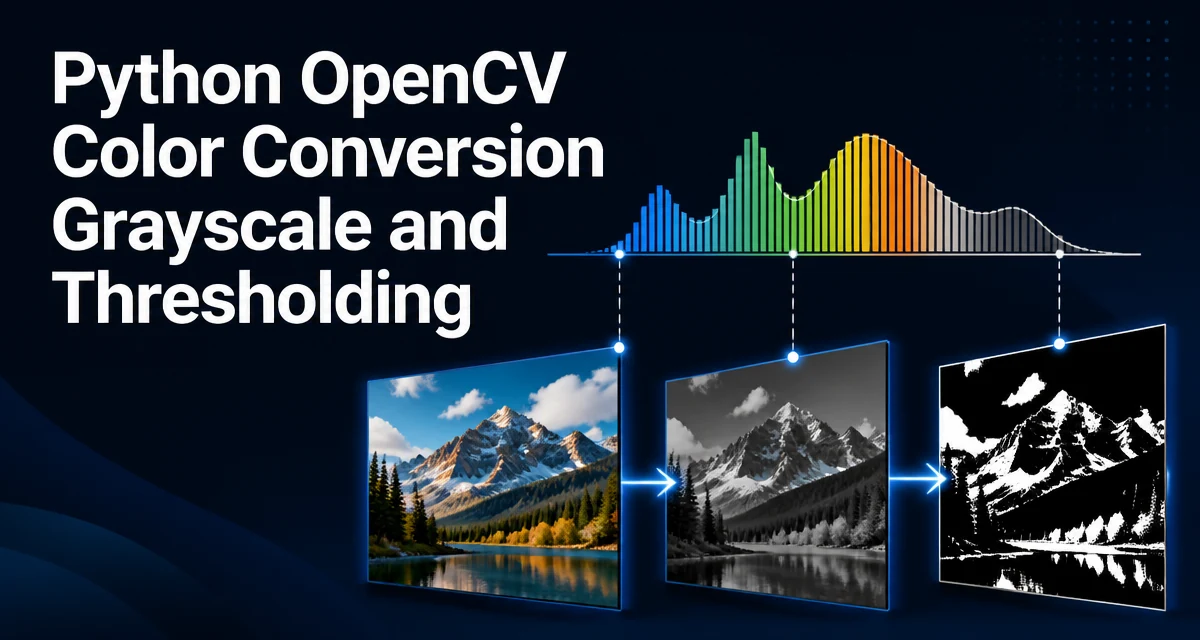
python opencv color conversion grayscale and thresholding requires a clear understanding of the core syntax, runtime behavior, and practical implementation patterns demonstrated in the examples below.
When working with OpenCV in Python, converting a color image to grayscale and then applying thresholding is a common preprocessing step for object detection, OCR, and image segmentation. The core functions are cv2.cvtColor for color conversion and cv2.threshold for thresholding. This article explains how to use them correctly, how to choose a threshold value, and when adaptive thresholding is a better choice.
Converting an Image to Grayscale with cv2.cvtColor
OpenCV reads images in BGR format by default. To convert a color image to grayscale, use cv2.cvtColor with the cv2.COLOR_BGR2GRAY flag:
import cv2

image = cv2.imread("input.jpg")
gray = cv2.cvtColor(image, cv2.COLOR_BGR2GRAY)
The resulting gray is a single-channel image with pixel values ranging from 0 to 255. You can also load an image directly as grayscale using cv2.imread(path, cv2.IMREAD_GRAYSCALE), but using cvtColor is useful when you need both the color and grayscale versions of the same image.
Understanding Thresholding in OpenCV
Thresholding converts a grayscale image into a binary image by comparing each pixel to a threshold value. Pixels above the threshold are set to one value, typically 255 (white), and pixels below are set to another, typically 0 (black). The function cv2.threshold performs this operation:
ret, binary = cv2.threshold(gray, 127, 255, cv2.THRESH_BINARY)
The first return value ret is the threshold that was used. For a fixed threshold, this is the value you passed in. The second value is the thresholded image. The third argument is the maximum value to use when the pixel exceeds the threshold, and the fourth argument is the thresholding type.
Applying a Fixed Threshold with cv2.threshold
The most common threshold type is cv2.THRESH_BINARY, which sets pixels above the threshold to maxval and all others to zero. The inverse variant cv2.THRESH_BINARY_INV flips the result: pixels below the threshold become maxval. Other types like cv2.THRESH_TRUNC and cv2.THRESH_TOZERO are useful in specific scenarios, but binary thresholding is the standard for segmentation.
| Type | Pixel > threshold | Pixel <= threshold |
|---|---|---|
| THRESH_BINARY | maxval | 0 |
| THRESH_BINARY_INV | 0 | maxval |
| THRESH_TRUNC | threshold | unchanged |
| THRESH_TOZERO | unchanged | 0 |
For most image processing pipelines, THRESH_BINARY or THRESH_BINARY_INV is what you need. Choose the inverse when the objects of interest are darker than the background.
Choosing a Threshold Value: Otsu's Method
Manually picking a threshold like 127 often fails when the image has varying contrast. Otsu's method automatically computes an optimal threshold that minimizes the intra-class variance of the pixel intensities. In OpenCV, you combine cv2.THRESH_OTSU with the threshold type:
ret_otsu, otsu = cv2.threshold(gray, 0, 255, cv2.THRESH_BINARY + cv2.THRESH_OTSU)
The threshold value passed in (0) is ignored; OpenCV calculates the Otsu threshold and returns it in ret_otsu. Otsu works best when the histogram of pixel intensities is bimodal, meaning the foreground and background are clearly separated.
Adaptive Thresholding for Uneven Lighting
A global threshold works well when illumination is uniform. If the image has shadows or gradients, a single threshold may miss parts of the object. Adaptive thresholding computes a threshold for each pixel based on a local neighborhood. Use cv2.adaptiveThreshold:
adaptive = cv2.adaptiveThreshold(gray, 255, cv2.ADAPTIVE_THRESH_GAUSSIAN_C, cv2.THRESH_BINARY, 11, 2)
The blockSize parameter defines the size of the neighborhood (must be odd), and C is a constant subtracted from the mean or weighted sum. The result often preserves details that a global threshold loses. The tradeoff is higher computational cost, especially for large images.
Thresholding with Color Images: When It Makes Sense
Thresholding is defined for single-channel images. If you need to segment based on color, converting to grayscale first is not always the right approach. For color segmentation, consider converting to the HSV color space and using cv2.inRange to create a mask. Grayscale thresholding is appropriate when the object and background differ in intensity, not hue.
Performance and Memory Considerations
Both cvtColor and threshold allocate new arrays. In a real-time video loop, repeated allocation can add garbage collection pressure. If you process many frames, consider reusing buffers with functions like cv2.threshold that accept a destination array, or use cv2.UMat for GPU acceleration. Adaptive thresholding is noticeably slower than global thresholding because it computes statistics over local windows. For large images, downscaling before thresholding can improve speed, but be aware that it also reduces detail.
Common Pitfalls and Edge Cases
One common mistake is passing a color image directly to cv2.threshold without converting to grayscale. The function expects a single-channel array. Another issue is forgetting to check whether cv2.imread actually loaded the image; if the path is wrong, it returns None, and calling cvtColor raises an error. For adaptiveThreshold, the block size must be an odd number greater than 1. Also, the maximum value for 8-bit images is 255; for 16-bit images, you need to adjust it accordingly. Finally, remember that cv2.threshold returns a tuple; if you only need the thresholded image, use _ for the first return value to avoid confusion.