Python Pillow Combine Images and Image Composition
python pillow combine images and image composition: Learn how to combine images with Python Pillow using paste, blend, and alpha composite methods for practical image...
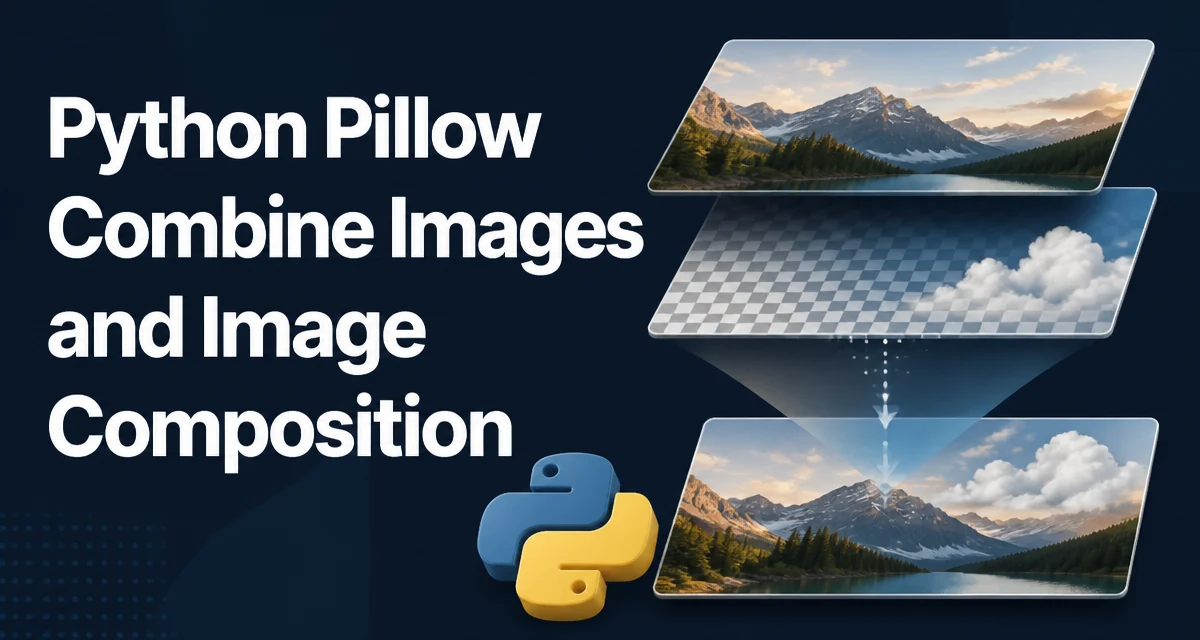
python pillow combine images and image composition requires a clear understanding of the core syntax, runtime behavior, and practical implementation patterns demonstrated in the examples below.
When you need to combine images in Python, Pillow provides three primary approaches: paste(), blend(), and alpha_composite(). Each serves a different composition scenario, and choosing the right one depends on whether you need positional placement, uniform transparency, or per-pixel alpha blending. This article walks through each method with concrete examples, then covers masking, mode compatibility, and the performance tradeoffs that matter when working with large images.
Pasting Images at Specific Coordinates
The most direct way to combine images is Image.paste(). It copies one image onto another at given coordinates, replacing the pixels in the destination region. The method does not perform any blending; it simply overwrites.
from PIL import Image

background = Image.new("RGB", (800, 600), "white")
foreground = Image.open("logo.png")

# Paste the foreground at (100, 150)
background.paste(foreground, (100, 150))
background.save("composed.jpg")
If the foreground has an alpha channel, paste() ignores it unless you supply a mask. Without a mask, the foreground's RGB values are copied directly, including any transparent areas that will appear as black or whatever color is underneath. To preserve transparency, you need to pass a mask that indicates which pixels to copy.
background.paste(foreground, (100, 150), mask=foreground)
Here the mask is the foreground image itself; Pillow uses the alpha channel of the mask to determine the opacity of each pixel. This works because paste() accepts a mask that can be an image with mode "1", "L", or "RGBA". When the mask is an RGBA image, only its alpha channel is used.
Alpha Compositing with alpha_composite()
For true alpha compositing, where the source and destination are combined based on their alpha values, use Image.alpha_composite(). This method expects both images to be in RGBA mode and performs the standard Porter-Duff "over" operation. The result is a new image where the source is drawn over the destination, respecting per-pixel alpha.
from PIL import Image

background = Image.open("background.png").convert("RGBA")
foreground = Image.open("overlay.png").convert("RGBA")

composed = Image.alpha_composite(background, foreground)
composed.save("composed.png")
Unlike paste(), alpha_composite() does not take coordinates. Both images must be the same size. If you need to place a smaller image at a specific position, you must first create a transparent canvas of the background size, paste the smaller image onto it, and then composite.
canvas = Image.new("RGBA", background.size, (0, 0, 0, 0))
canvas.paste(foreground, (100, 150))
composed = Image.alpha_composite(background, canvas)
This pattern is common when overlaying a logo or watermark onto a photo. The intermediate canvas ensures the foreground is correctly positioned before compositing.
Uniform Blending with blend()
Image.blend() creates a new image by linearly interpolating between two images of the same size and mode. The alpha parameter controls the weight of the first image: alpha=0 returns the first image, alpha=1 returns the second, and values in between produce a cross-fade.
from PIL import Image

img1 = Image.open("photo1.jpg").convert("RGB")
img2 = Image.open("photo2.jpg").convert("RGB")

blended = Image.blend(img1, img2, alpha=0.5)
blended.save("blended.jpg")
This is useful for creating transitions or comparing two versions of an image, but it applies the same alpha to every pixel. There is no spatial variation. If you need a gradient blend across the image, you would have to build a mask and use composite() or paste() with a mask.
Selective Composition with Masks
For more control, use Image.composite(). It takes two images and a mask, and returns an image where each pixel is chosen from the first or second image based on the mask's intensity. The mask can be an "L" or "RGBA" image; its pixel values determine the blend factor at each location.
from PIL import Image, ImageDraw

base = Image.open("base.jpg").convert("RGB")
overlay = Image.open("overlay.jpg").convert("RGB")

# Create a vertical gradient mask
mask = Image.new("L", base.size, 0)
draw = ImageDraw.Draw(mask)
for y in range(base.height):
    draw.line([(0, y), (base.width, y)], fill=int(255 * y / base.height))

result = Image.composite(base, overlay, mask)
result.save("composite.jpg")
Here the mask controls the transition from the base image at the top to the overlay at the bottom. This is far more flexible than blend() because the mixing ratio varies per pixel. You can generate masks from shapes, text, or any other image processing operation.
Mode and Size Compatibility
All composition methods require the images to be in compatible modes. paste() can copy between different modes, but the result may be unexpected if you paste an RGBA image onto an RGB background without a mask. blend() and alpha_composite() require both images to have the same mode and size; otherwise, Pillow raises a ValueError.
A common mistake is trying to alpha_composite() an RGB image with an RGBA one. Convert both to RGBA first:
background = background.convert("RGBA")
foreground = foreground.convert("RGBA")
For paste(), the mask must be in mode "1", "L", or "RGBA". If you use an RGBA image as a mask, only its alpha channel is considered. This can be confusing when the mask has transparency but also color; the color is ignored.
Performance and Memory Considerations
When combining large images, memory usage can become a concern. Each Image object holds pixel data in memory, and operations like alpha_composite() create a new image of the same size. If you are processing many images, consider working in chunks or using Image.paste() with a mask, which can be more efficient than creating an intermediate canvas for every overlay.
For repeated compositing in a loop, avoid reloading the same background image from disk each time. Keep it in memory and reuse it. Also, be aware that convert("RGBA") creates a new image, so if you need the original mode later, retain a reference.
A practical tip: if you only need to overlay a small image onto a large one, using paste() with a mask is usually faster than creating a full-size canvas and calling alpha_composite(). The canvas approach allocates a new image the size of the background, which can be wasteful when the foreground is small. Measure your specific workload to decide, but in general, paste() is the lighter operation.
Handling Edge Cases in Composition
One common edge case is pasting an image partially outside the background bounds. paste() clips the foreground to the background's boundaries without raising an error. This is useful for sliding animations, but if you need to know the visible region, compute the intersection manually.
Another issue arises when the foreground has a mode with no alpha, such as "RGB". Using it as a mask will raise a ValueError because the mask must have an alpha channel. Convert the foreground to RGBA first, or extract its alpha channel with split().
r, g, b, a = foreground.split()
background.paste(foreground, (0, 0), mask=a)
Finally, remember that paste() modifies the destination image in place, while blend() and alpha_composite() return new images. If you need to keep the original background unchanged, work on a copy with background.copy() before pasting.