python-pptx: Adding Text, Images, and Tables to Slides
python python pptx slides text images and tables: Learn how to use python-pptx to programmatically create PowerPoint slides with text boxes, images, and tables, includ...
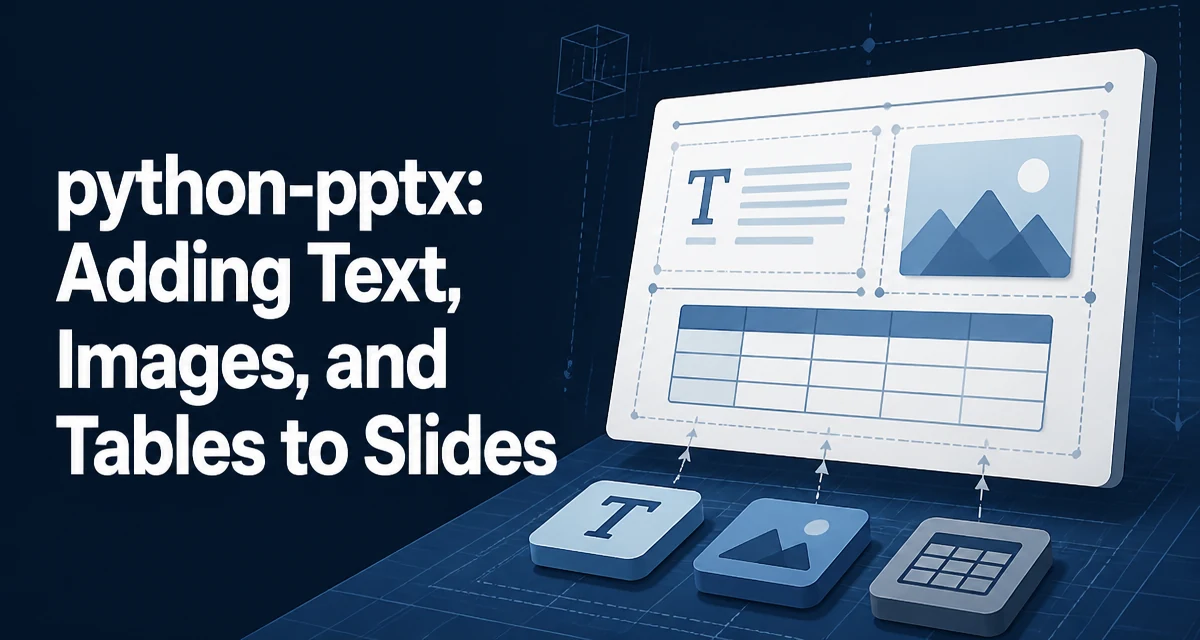
python python pptx slides text images and tables requires a clear understanding of the core syntax, runtime behavior, and practical implementation patterns demonstrated in the examples below.
When you need to generate a PowerPoint deck from a script, python-pptx is the library that lets you create, modify, and save .pptx files without PowerPoint installed. It is particularly useful for automating reports, dashboards, or meeting materials where the content changes frequently but the structure stays the same. This article focuses on the core operations you will use most often: adding slides, inserting text, placing images, and building tables. We will work through each step with realistic examples and discuss the behavior that matters when you run this code in production.
Setting Up python-pptx
Install the library from PyPI:
pip install python-pptx
The library depends on lxml and Pillow for XML handling and image processing. After installation, you can import the Presentation class and start building a deck. The API works with the Office Open XML format, so you cannot open or save legacy .ppt files. If your workflow requires converting from .ppt, you must first convert the file to .pptx using PowerPoint or LibreOffice.
Creating a Presentation and Choosing Slide Layouts
A Presentation object represents the entire deck. It has a slide_layouts collection that mirrors the layouts defined in the default template. You can also load an existing .pptx as a template by passing its path to the Presentation constructor, which gives you access to its layouts, theme, and master slides.
from pptx import Presentation

prs = Presentation()
# Use the first layout (usually Title Slide)
layout = prs.slide_layouts[0]
slide = prs.slides.add_slide(layout)
Each layout has placeholders. When you add a slide from a layout, the placeholders are copied into the slide. You can access them by index or by name. For example, the title placeholder is often at index 0, but this is not guaranteed across templates. To avoid fragile index assumptions, inspect the layout's placeholders programmatically:
for shape in layout.placeholders:
    print(shape.placeholder_format.idx, shape.name)
If you need a blank slide, use the layout that has no placeholders (often index 6 in the default template). This gives you full control over where you place text boxes, images, and tables.
Adding Text Boxes and Formatting Text
To add text outside of placeholders, use shapes.add_textbox(). This creates a shape with a text frame. You can set the text, font size, bold, color, and alignment.
from pptx.util import Inches, Pt
from pptx.dml.color import RGBColor

slide = prs.slides.add_slide(prs.slide_layouts[6])
left = Inches(1)
top = Inches(1)
width = Inches(4)
height = Inches(1.5)
textbox = slide.shapes.add_textbox(left, top, width, height)
tf = textbox.text_frame
tf.text = "Quarterly Revenue"

p = tf.paragraphs[0]
p.font.size = Pt(32)
p.font.bold = True
p.font.color.rgb = RGBColor(0x2E, 0x74, 0xB5)
The text_frame has a text property that sets the first paragraph. To add multiple paragraphs, use add_paragraph():
tf.text = "First line"
p2 = tf.add_paragraph()
p2.text = "Second line"
p2.font.size = Pt(18)
Text frames automatically wrap text within the shape's width. If you need auto-fit behavior, you can set tf.word_wrap = True and adjust the shape's height manually. python-pptx does not perform automatic font scaling, so you must ensure the box is large enough for the content.
Inserting Images
Images are added with shapes.add_picture(). You can pass a file path or a file-like object. The method returns a Picture shape that you can reposition or resize.
slide.shapes.add_picture("chart.png", left=Inches(1), top=Inches(3), width=Inches(5))
If you specify only width, the height is scaled proportionally. You can also specify both width and height to force a specific size, but that may distort the image. To preserve aspect ratio, provide only one dimension.
For images that come from a URL, download the bytes first and use BytesIO:
import requests
from io import BytesIO

response = requests.get("https://example.com/logo.png")
image_stream = BytesIO(response.content)
pic = slide.shapes.add_picture(image_stream, left=Inches(0.5), top=Inches(0.5), height=Inches(1))
python-pptx supports PNG, JPEG, GIF, TIFF, and BMP. For vector graphics, it does not support SVG directly; you would need to convert to PNG first.
Building Tables
Tables are created with shapes.add_table(). The method returns a GraphicFrame that contains a Table object. You specify the number of rows and columns, and the position and size.
table_shape = slide.shapes.add_table(rows=3, cols=3, left=Inches(1), top=Inches(2), width=Inches(6), height=Inches(2))
table = table_shape.table
Set cell text by accessing the cell object and its text_frame:
table.cell(0, 0).text = "Product"
table.cell(0, 1).text = "Units"
table.cell(0, 2).text = "Revenue"
You can also style the table. The table object has a first_row property that controls whether the first row is treated as a header (with special formatting). To set column widths, use table.columns[i].width. Row heights are set similarly with table.rows[i].height.
To merge cells, use cell.merge(other_cell). For example, to create a title row spanning all columns:
table.cell(0, 0).merge(table.cell(0, 2))
table.cell(0, 0).text = "Annual Summary"
When you add a table, the default style is applied. You can change the fill color of a cell:
cell = table.cell(1, 0)
cell.fill.solid()
cell.fill.fore_color.rgb = RGBColor(0xDD, 0xDD, 0xDD)
Tables in python-pptx are limited to the formatting options available in the underlying DrawingML. You cannot apply conditional formatting or complex formulas; those are not part of the .pptx format's table model.
Controlling Slide Dimensions and Layout
By default, a new Presentation uses a 4:3 aspect ratio (10 x 7.5 inches). To use a 16:9 widescreen format, set the slide width and height before adding slides:
prs.slide_width = Inches(13.333)
prs.slide_height = Inches(7.5)
This must be done before any slides are added, because the slide size is a presentation-level property. If you load an existing template, the dimensions are already set.
When placing shapes, you need to think in absolute coordinates. The Inches and Pt utility classes convert to EMU (English Metric Units), which is what the underlying XML uses. You can also use Emu directly if you need finer control.
Performance and Memory Considerations
Generating a deck with hundreds of slides can consume significant memory, especially when adding large images. python-pptx keeps the entire presentation in memory until you call save(). For large decks, consider building the presentation incrementally and saving periodically, or using a streaming approach if your use case allows it.
Image handling is the most memory-intensive operation. When you add a picture, the image is embedded into the .pptx file. If you add the same image multiple times, python-pptx will embed it each time, increasing file size. To avoid duplication, reuse the same image file path or load the image once and pass the same BytesIO object, though the library may still copy the data. For truly large decks, it is better to use a template with placeholders and replace the image content via a different method, but that is beyond the scope of this article.
Another performance factor is the number of shapes. Each text box, picture, and table adds XML elements. When you have thousands of shapes, parsing and saving can slow down. If you need to generate a very large deck, consider batching the work or using a lower-level library that writes the XML directly, but for most business reporting scenarios python-pptx is fast enough.
Common Pitfalls and Compatibility
One frequent mistake is using a layout index that does not exist. The default template has 11 layouts, but a custom template may have fewer. Always check len(prs.slide_layouts) before accessing an index.
Another pitfall is assuming that placeholder indexes are consistent across templates. Instead of hardcoding index 0 for the title, use the placeholder name or iterate to find the one you need.
Text overflow is also common. python-pptx does not auto-shrink text to fit a shape. If you set a fixed height and the text is longer, it will overflow the shape boundary, which may overlap other elements. You can estimate the required height by measuring the text length and font size, but there is no built-in measurement API. For predictable output, keep text short or set word_wrap and allocate generous height.
When saving, the file extension must be .pptx. python-pptx will raise an error if you try to save to a .ppt path. Also, the library requires that the file is not open in PowerPoint when you write to it, because the file is locked on Windows.
Finally, remember that python-pptx does not support every PowerPoint feature. Animations, transitions, SmartArt, and embedded objects are not exposed. If your deck requires those, you will need to either use a different tool or post-process the file with PowerPoint itself.
For production use, consider wrapping your generation code in a function that takes a data structure (e.g., a list of dicts) and returns the Presentation object. This makes it testable and reusable across different reports. Also, validate the output by opening it in PowerPoint or LibreOffice to ensure the layout looks as expected, because rendering can differ slightly between applications.