Merge, Split, Edit, and Redact PDFs with Python PyMuPDF
python pymupdf merge split edit and redact pdf: Learn to merge, split, edit, and redact PDFs with Python PyMuPDF. Practical code examples for document manipulation, te...
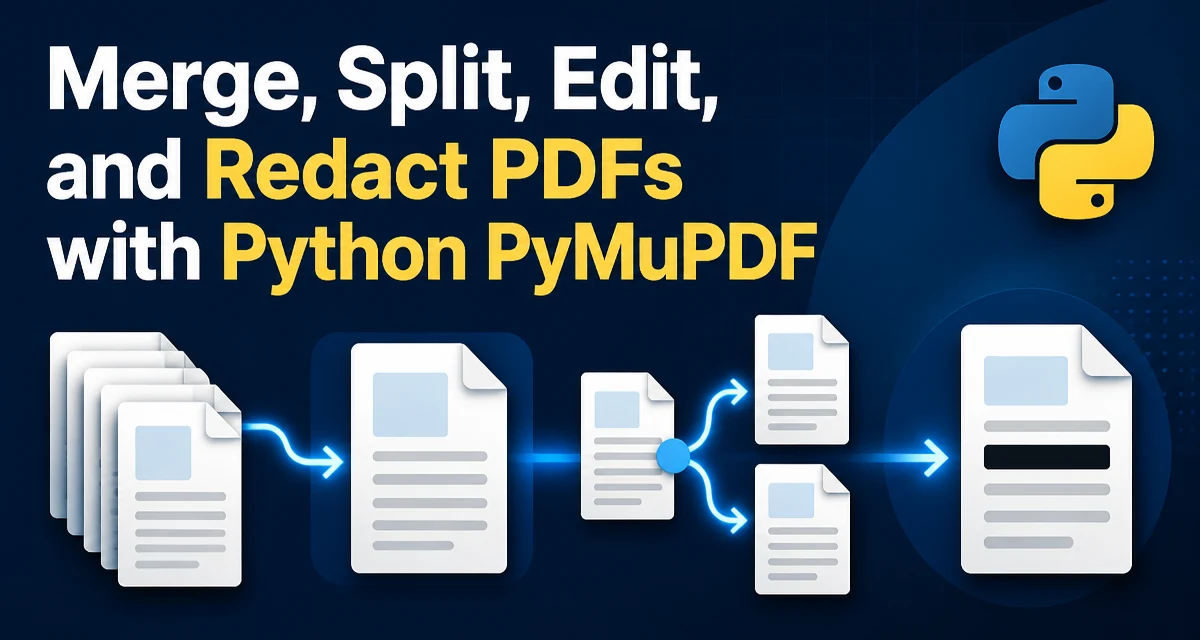
When you need to merge, split, edit, or redact PDFs in Python, PyMuPDF (imported as fitz) offers a single library that covers all these operations without spawning external processes. The API works directly on the PDF structure, giving you control over pages, text, and annotations. This article walks through the core operations for python pymupdf merge split edit and redact pdf workflows, with code examples you can adapt to your own scripts.
Why PyMuPDF for PDF Manipulation
PyMuPDF is a Python binding for the MuPDF library, which is written in C. It gives you direct access to the PDF document model, including pages, objects, text, and annotations. Unlike PDF libraries that treat a PDF as an opaque blob, PyMuPDF lets you inspect and modify the internal structure. That makes it suitable for tasks that require precision, such as redacting specific text while leaving the rest of the page intact.
The library is installed with pip install pymupdf. The import name is fitz, which is the historical name of the underlying rendering engine. You will see both names in documentation, but the code always uses import fitz.
Merging PDF Documents
Merging PDFs with PyMuPDF is done by inserting pages from one document into another. The Document.insert_pdf() method copies pages from a source document into the current document. You can control the page range and the position where the pages are inserted.
import fitz

def merge_pdfs(pdf_paths, output_path):
    merged = fitz.open()
    for path in pdf_paths:
        with fitz.open(path) as src:
            merged.insert_pdf(src)
    merged.save(output_path)
    merged.close()
The insert_pdf method accepts optional from_page and to_page parameters to copy a subset of pages. By default, all pages are copied. The method also supports a start_at parameter to insert at a specific page index. For example, merged.insert_pdf(src, from_page=1, to_page=3, start_at=0) copies pages 1 through 3 (0-based) to the beginning of the merged document.
When merging many large files, consider opening each source document inside a with block to ensure it is closed after copying. The merged document holds references to the page objects, but the source document can be closed once the pages are inserted.
Splitting PDFs into Separate Files
Splitting a PDF means extracting a range of pages into a new document. PyMuPDF does not have a dedicated split method, but you can create a new document and insert the desired pages from the source.
import fitz

def split_pdf(source_path, page_ranges, output_prefix):
    src = fitz.open(source_path)
    for idx, (start, end) in enumerate(page_ranges):
        new_doc = fitz.open()
        new_doc.insert_pdf(src, from_page=start, to_page=end)
        new_doc.save(f"{output_prefix}_{idx}.pdf")
        new_doc.close()
    src.close()
The page_ranges parameter is a list of tuples, each containing the start and end page index (0-based). This approach gives you fine control over which pages end up in each output file. If you need to split every page into its own PDF, iterate over range(src.page_count) and call insert_pdf with from_page=i, to_page=i.
A common mistake is to forget that insert_pdf copies pages, not moves them. The source document remains unchanged, so you can reuse it for multiple splits without reloading.
Editing Text and Annotations
PyMuPDF allows you to add text, images, and annotations to existing pages. The most common editing operation is inserting text at a specific location using Page.insert_text(). You can also replace existing text by searching for it with Page.search_for() and then drawing a rectangle over it before inserting new text.
import fitz

def add_text_to_page(pdf_path, page_num, text, rect):
    doc = fitz.open(pdf_path)
    page = doc[page_num]
    page.insert_text(rect.tl, text, fontsize=12, fontname="helv")
    doc.save("output.pdf")
    doc.close()
The rect is a fitz.Rect object that defines the insertion point. rect.tl is the top-left corner. For more control, you can use page.insert_textbox() to wrap text within a rectangle, which is useful for multi-line text.
To replace existing text, you need to locate it first. page.search_for("old text") returns a list of rectangles where the text appears. You can then redact those areas and insert new text, but that overlaps with the redaction workflow described next. For simple annotations, such as highlights or notes, use page.add_highlight_annot() or page.add_text_annot().
Redacting Sensitive Content
Redaction in PyMuPDF is permanent: it removes the underlying text and images from the PDF content stream. This is different from simply covering text with a rectangle, which leaves the original data recoverable. Redaction is the correct approach when you need to ensure that sensitive information is truly gone.
The process has two steps. First, add a redaction annotation to the page using Page.add_redact_annot(). This annotation defines the area to redact. Then call Page.apply_redactions() to actually remove the content. You can also specify the fill color for the redaction rectangle.
import fitz

def redact_text(pdf_path, output_path, search_text):
    doc = fitz.open(pdf_path)
    for page in doc:
        rects = page.search_for(search_text)
        for rect in rects:
            page.add_redact_annot(rect, fill=(0, 0, 0))
        page.apply_redactions()
    doc.save(output_path)
    doc.close()
The fill parameter sets the color of the redaction rectangle. Black is common, but you can use any RGB tuple. apply_redactions() removes text, images, and vector graphics that intersect the redaction area. It also removes the redaction annotation itself.
One important detail: apply_redactions() must be called on each page that has redaction annotations. If you add redactions to multiple pages and then save without applying them, the redactions will not take effect. The method also has an optional images parameter to control whether images are removed. By default, images are removed if they intersect the redaction area.
Performance and Memory Considerations
PDF files can be large, and PyMuPDF loads the entire document structure into memory. For very large documents, this can be a concern. The library uses lazy loading for page content, but the document object itself holds references to all pages and objects. If you are processing many files in a loop, make sure to close each document after saving to release memory.
Incremental saving is another way to reduce memory usage. When you call doc.save(output_path, incremental=True, encryption=fitz.PDF_ENCRYPT_KEEP), PyMuPDF appends changes to the existing file instead of rewriting the whole document. This is faster and uses less memory, but it only works if you are modifying an existing file and not creating a new one. For merging or splitting, you are creating new documents, so incremental saving is not applicable.
For redaction, the operation is CPU-intensive because it must parse and rewrite the content streams. If you are redacting many pages, expect the processing time to scale with the number of pages and the complexity of the content. There is no built-in parallelization, but you can process multiple documents concurrently using Python's concurrent.futures if you have multiple cores.
Handling Errors and Document Lifecycle
PyMuPDF raises exceptions for invalid operations, such as trying to open a non-PDF file or accessing a page index out of range. It is good practice to check that a file is a PDF before opening it. The Document class has an is_pdf attribute that you can inspect.
import fitz

def safe_open(path):
    try:
        doc = fitz.open(path)
    except Exception as e:
        print(f"Failed to open {path}: {e}")
        return None
    if not doc.is_pdf:
        doc.close()
        return None
    return doc
Always close documents when you are done. PyMuPDF does not automatically close documents when the object goes out of scope, and leaving many documents open can exhaust file handles. The with statement is the cleanest way to manage this for source documents. For output documents, you must call close() after saving, or use a try/finally block if you need to handle exceptions during saving.
Another common issue is saving to the same path as the input file. If you open a document and then save to the same filename, PyMuPDF may fail because the file is locked. Use a temporary output path and then replace the original file after the document is closed. This also prevents data loss if the save operation fails midway.
For redaction, be aware that apply_redactions() can invalidate text search results. If you need to redact multiple different text patterns, collect all rectangles first, add all redaction annotations, and then call apply_redactions() once per page. Calling apply_redactions() after each pattern would cause the second search to fail because the text is already removed.
When working with encrypted PDFs, you may need to provide a password. The fitz.open() method accepts a password parameter. If the document is encrypted and you do not provide the correct password, opening it will raise an exception. You can check doc.needs_pass to determine if a password is required before attempting to open it.
PyMuPDF's redaction feature is designed to remove content from the PDF's content streams, but it does not guarantee that the information is unrecoverable from metadata or other hidden objects. If you are redacting highly sensitive data, consider re-saving the document with a new ID and removing metadata. The Document.set_metadata() method allows you to clear or replace metadata fields, and doc.bake() can be used to remove unused objects after redaction.